Categories
Mommy Diaries Photography

Zero Motivation Kind of a Day

Today is an icky, blah kind of day. I know everyone gets those, but when I have no personal space, its cold outside, and my kids are jumpy I really struggle. A lot. I can’t just send my kids off to school and curl up with a book and a cup of hot chocolate. As much as I want to want to shake this mood, part of me just wants to wallow in self pity.

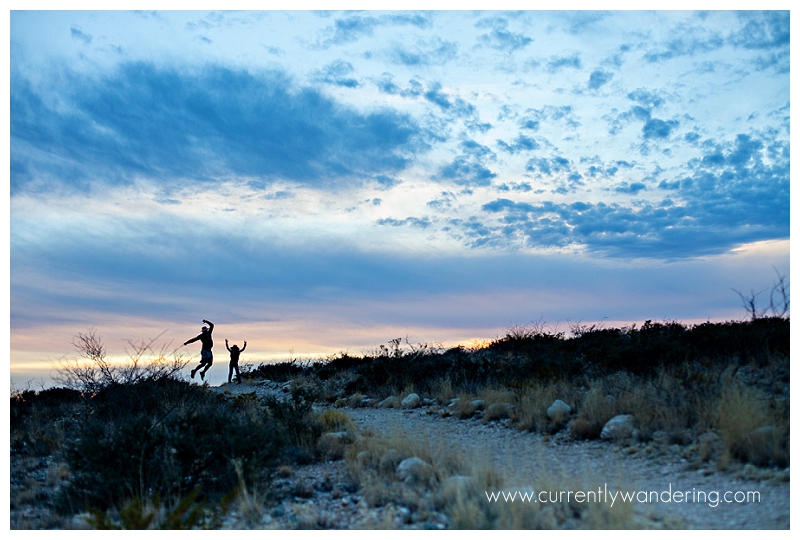
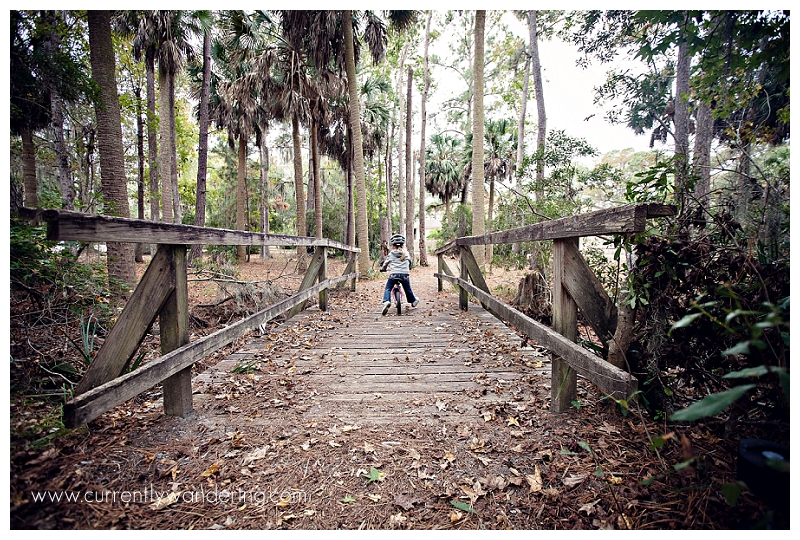
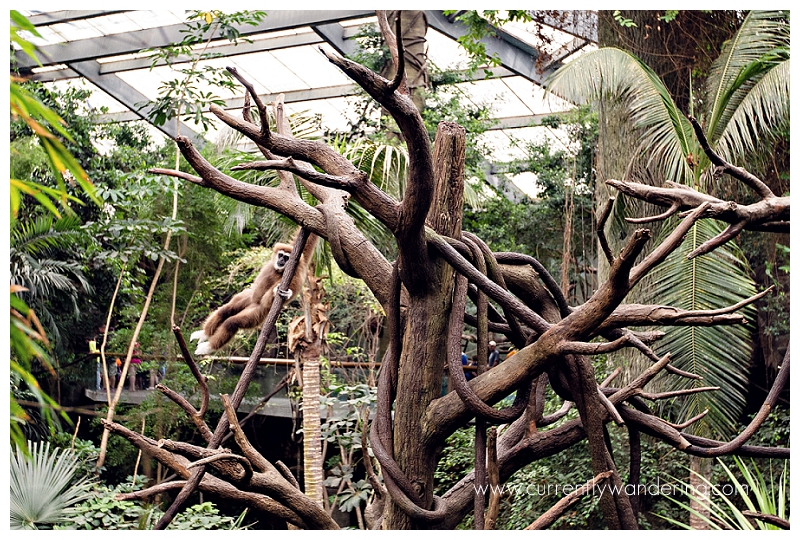
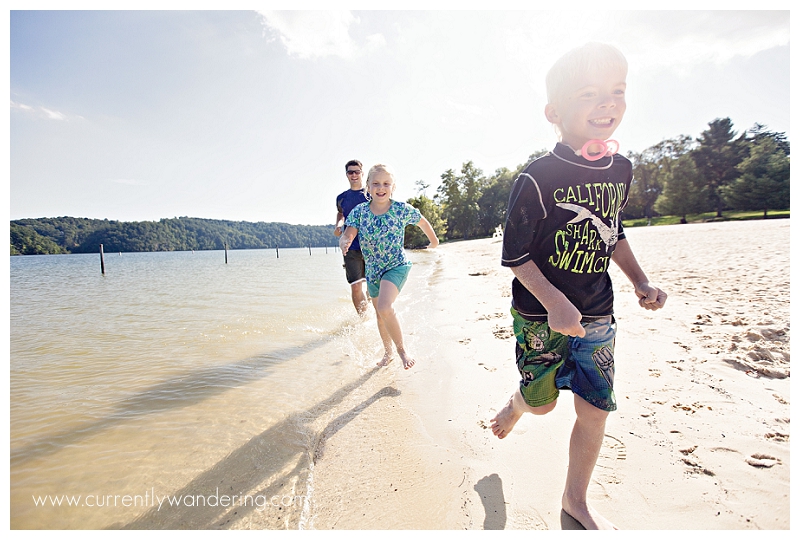
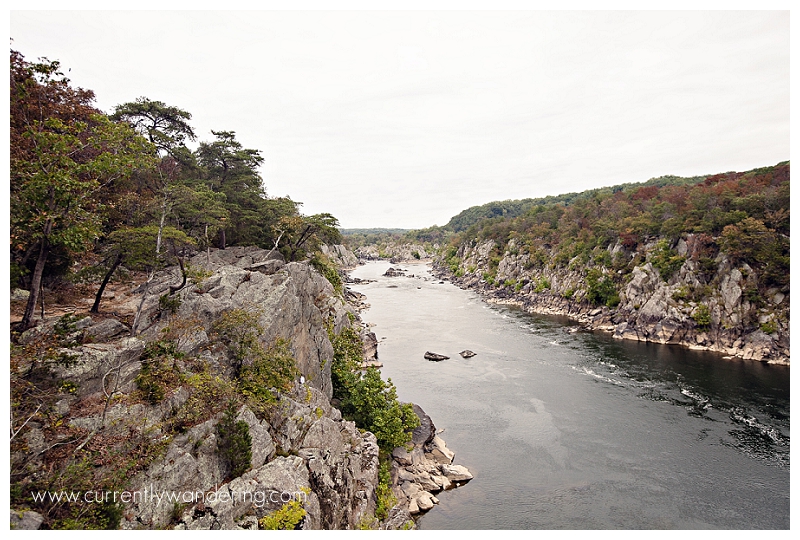
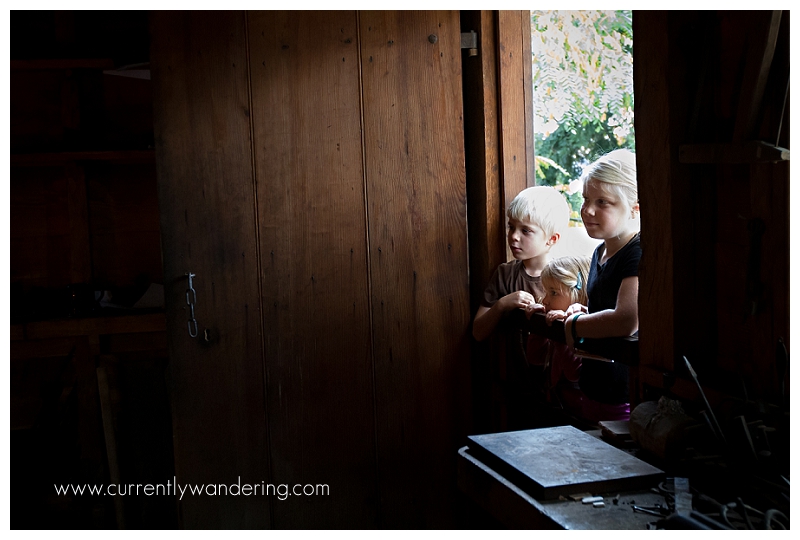
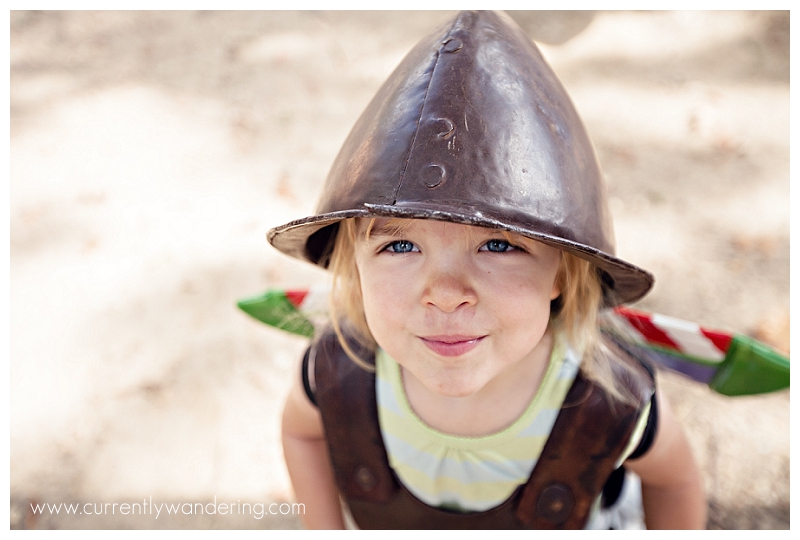
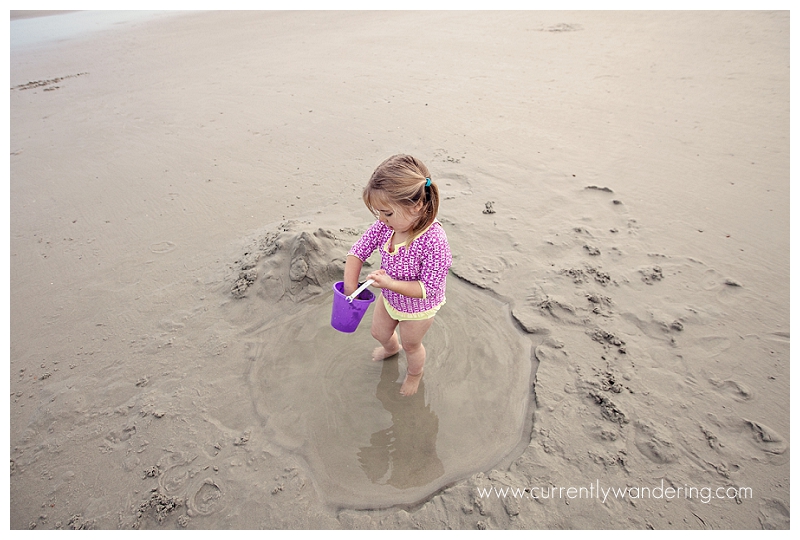
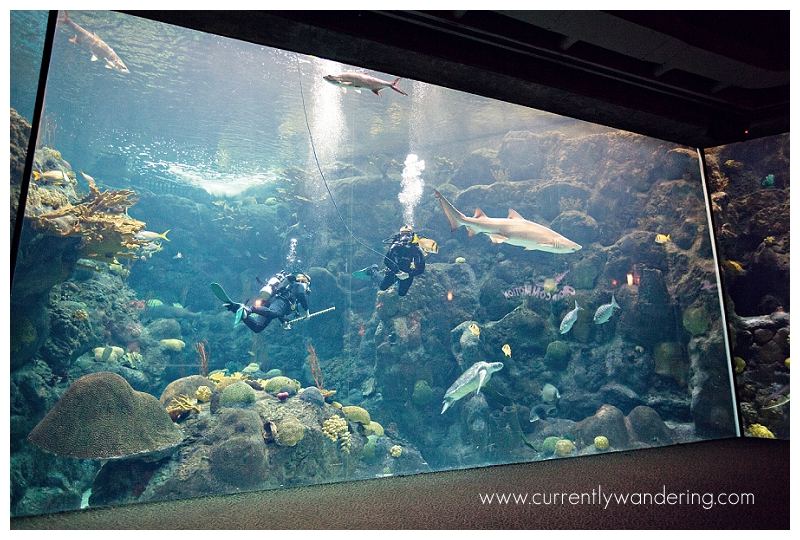
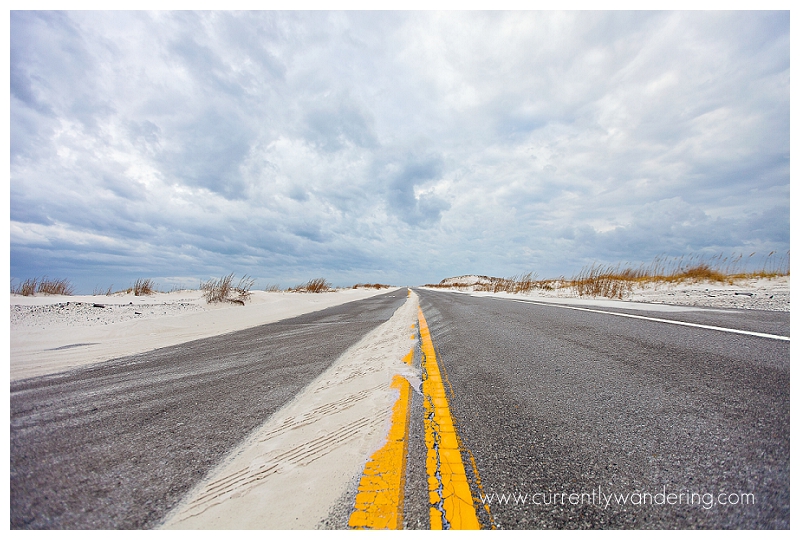
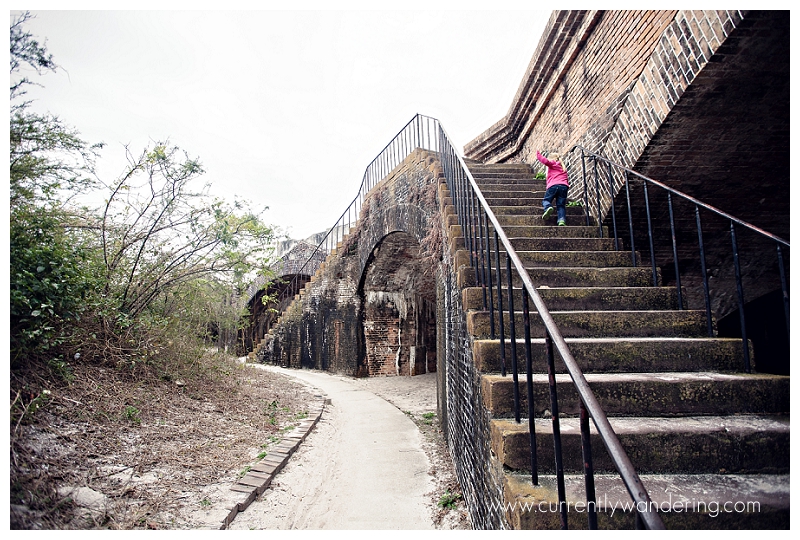
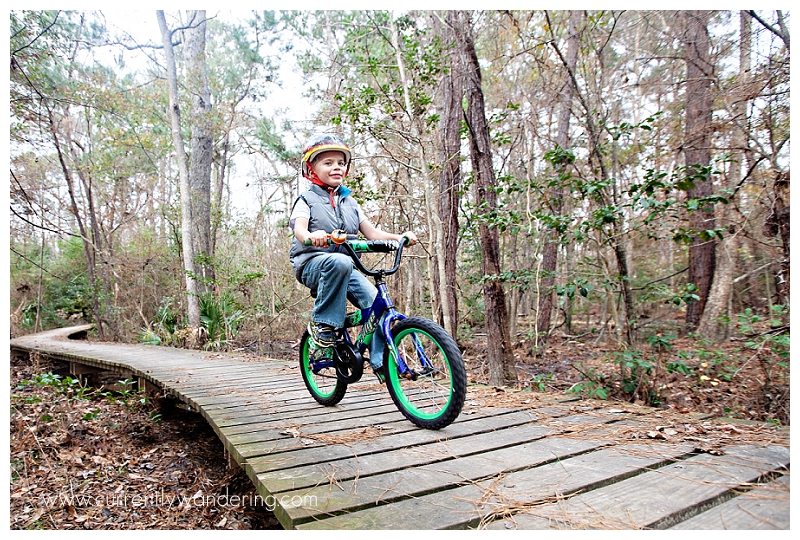
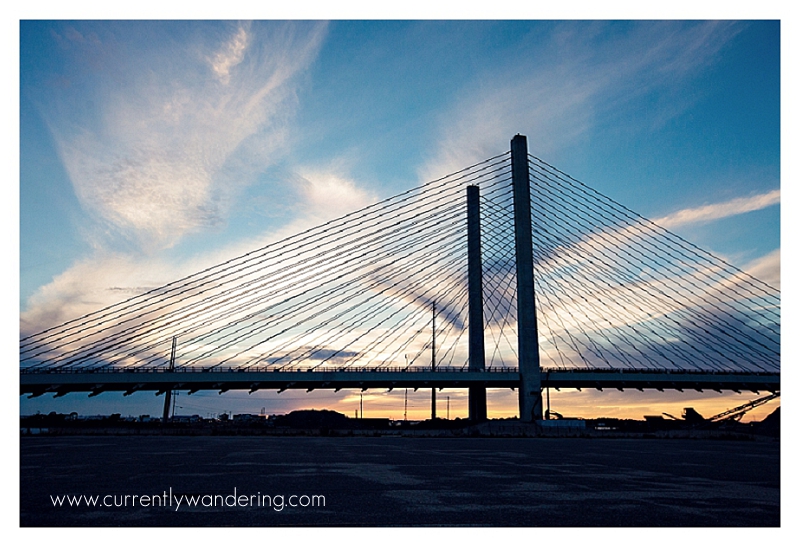
Since my motivation today is zero (including, ahem, blogging) I thought I’d share some of my favorite photos so far. Maybe they’ll cheer me up.IMG_3626-Edit copyIMG_3726-2-Edit copyIMG_3797-Edit copySkidaway Island State Park-4Skidaway Island State Park-14Currently wandering-12Delaware Seashore state park playgroundIMG_0032-Edit copyIMG_1608IMG_2017IMG_2051-Edit copyIMG_2262IMG_2510-Edit copyIMG_2577IMG_2920-Edit copyIMG_3053IMG_3079-Edit copyIMG_3260IMG_3527-Edit copy

Delaware Seashore State Park-Charles W. Cullen bridge

Categories
Adventure Reports Florida Photography The 50 States The Basics Tips & Tricks

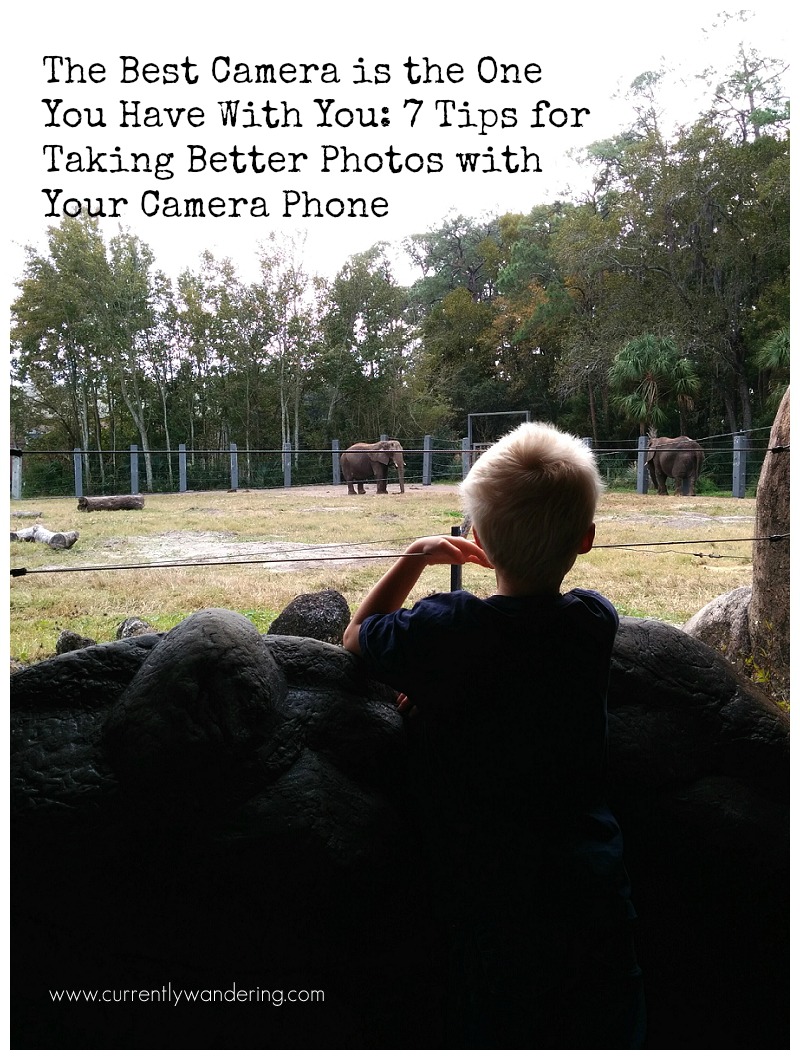
The Best Camera is the One You Have With You: 7 Tips for Taking Better Photos with Your Camera Phone

The Best Camera is the One You Have With You. 7 Tips for Taking Better Photos with Your Camera PhoneWe pulled into the near-empty parking lot at the Jacksonville, Florida Zoo and all climbed out of the car. I walked around, opened the back of the truck to grab out our adventure bag and my camera. A quick check of the camera to make sure all was in order before heading out, and wait! What? Where are all my memory cards?

I’m sure I’m not the only one this has happened to. Super excited to use your “big” camera on an adventure only to realize that you are missing a memory card, or your battery, or even your lens!

I could have been angry or frustrated and let that ruin my whole day, but instead I decided to challenge myself to see what photos I could capture with the one camera I DID have with me: my phone. You know what? These photos turned out to be some of my favorites.

Here are a couple of tips for capturing GREAT photos with your camera phone:

1. Photography Rules Still Apply. Probably even more so. Rule of Thirds? Check. Leading lines? Got it. Watch your angles, make sure your photos have an obvious subject, create balance, and isolate clutter.
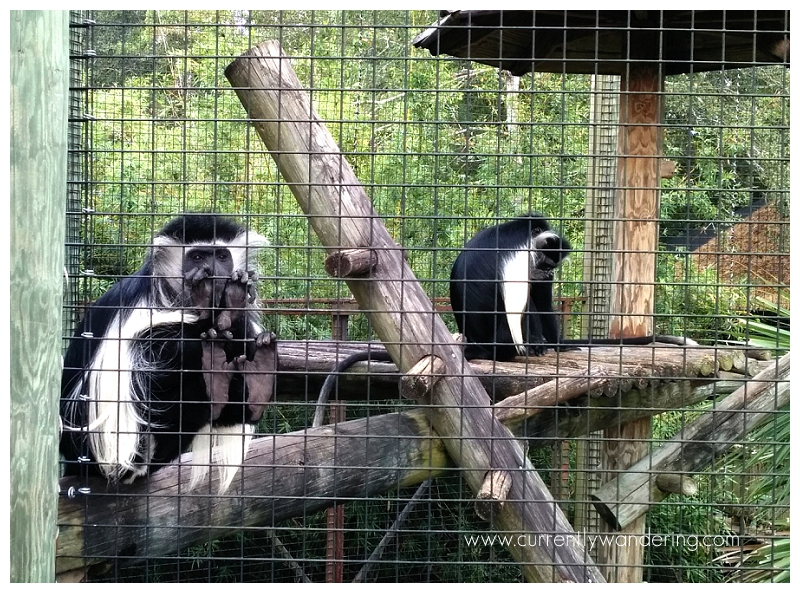
2. Use Your Screen. You don’t have a viewfinder, so take advantage of your viewing screen. One of my favorite experiences at this particular zoo was watching my kids feed the giraffes. Something about their crazy long tongues had us all in fits of giggles. The nice part about using a camera phone instead of an SLR is that I can hold the phone out in front of me while still viewing the screen. This allows me to get a different angle (lower OR higher) while still seeing what I’m shooting. It also avoids the awkward photographer squat (yeah, you know what I’m talking about).

3. Crop, Don’t Zoom. Just pretend you have a fixed lens. Using your zoom will often pixelate your photo anyway (decrease the quality) so it’s better to crop in on a photo during editing. I cropped the above photo of the giraffe to help isolate him and make him the center of the photo.

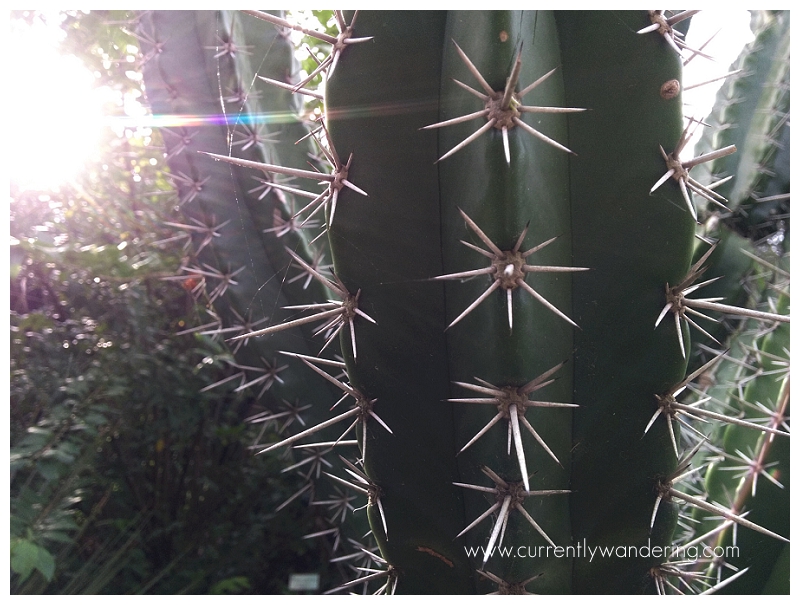
4. Get Close. Really Close. Obviously at a zoo its difficult to get close to the animals, but what else can you take a photo of? The vegetation at this zoo was amazingly beautiful. Cactus, trees, bushes, cool plants, flowers, they had it all. It added to the overall experience, so why not take a photo so you can remember it?

5. Don’t Be Afraid of Sun Flare. I love sun. I love the added dimension the light gives to my photos. Yes, shooting on an overcast day is easy, but your photos can be so much more dynamic with a little back lighting. Face the sun, focus on your subject and then move the sun around in the frame by physically moving your phone. Once the sun hits the edge of the frame, you’ll typically get the cool flare that washes the light over your photo.
6. Edit, Don’t Filter. If you want clean photos that don’t look like everyone else’s, use an in phone editing app instead of applying the same filters everyone else is using. I rarely feel the need to filter after I’ve used Snapsneed to dress up my photos. Check our tutorial here if you’re not familiar with it.
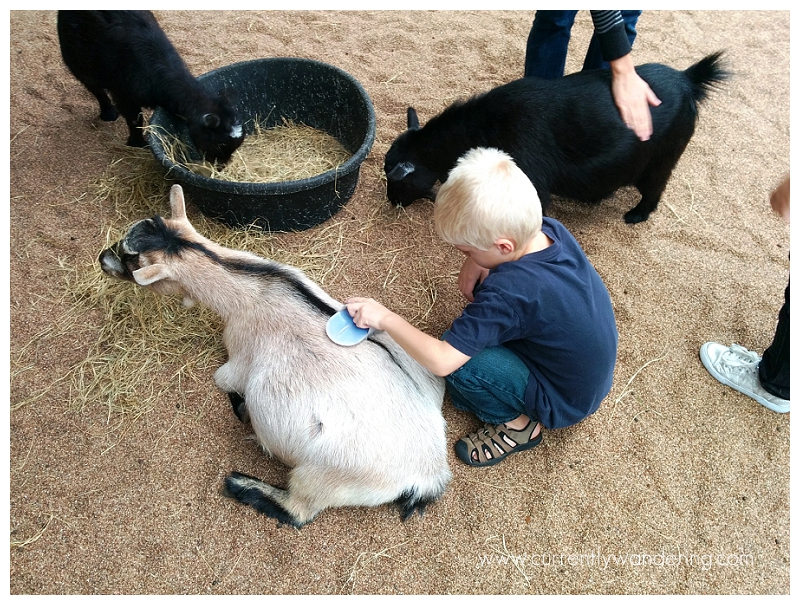
7. Use a lens. Wait, what? Its a camera phone. If you want to be even MORE creative with your phone photos, add some lenses like those found over at the Photojojo store. Small, magnetic, and easy to take with you. They have a wide variety including even a polarizer (I don’t have that one yet!).

What else have you thought about while shooting with your camera phone? Share in the comments below, and happy shooting!
 

Categories
Photo Gear Photography

BlogStomp & PicMonkey – Two Amazing Tools for Your Photos

Blogstomp & Picmonkey copy

BlogStomp: A Photographer’s Best Blogging Friend

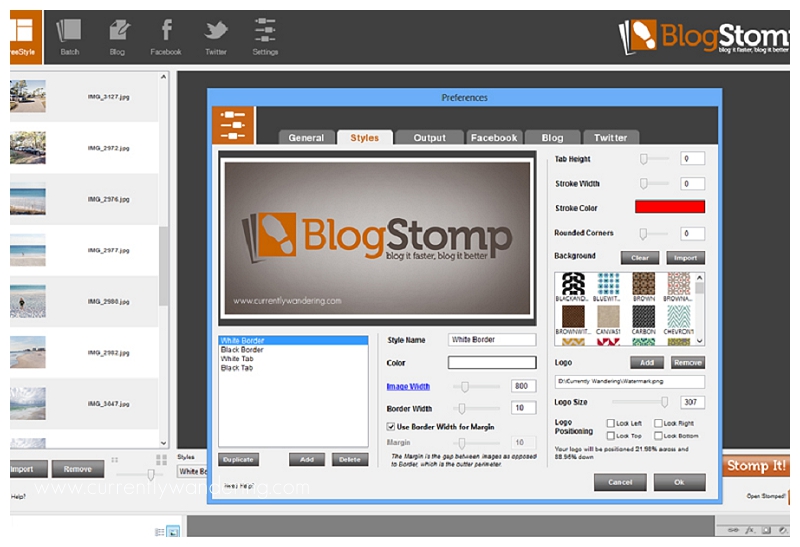
As a photographer, blogging your photos used to be ridiculously painful. So many companies sold “blogboards” or templates with actions you could use in Photoshop to automatically insert photos into cool grids and storyboards. While the photos looked great, it still took FOREVER to do. Then along came BlogStomp and the entire photography blogging world turned upside down. I’m telling you. Worth. Every. Penny. And then some. You drag and drop photos into the desktop program (yes, you have to install it). After selecting a group of photos, BlogStomp will automatically generate storyboards based on the number of photos and their orientation (vertical or horizontal). You then hit “stomp” and voila! Ready to go. Okay, okay, you have to configure some settings first, but once that is done everything is pretty streamlined. You can even auto add a watermark.

Do me a favor and buy through THIS link. It’ll help pay our campground fees.
BlogStomp Tutorial: http://blogstomponline.com/support/blogstomp-tutorial/

Blogstomp Screen Shot 2 copy

PicMonkey: A Blogger’s Best Pinterest Friend

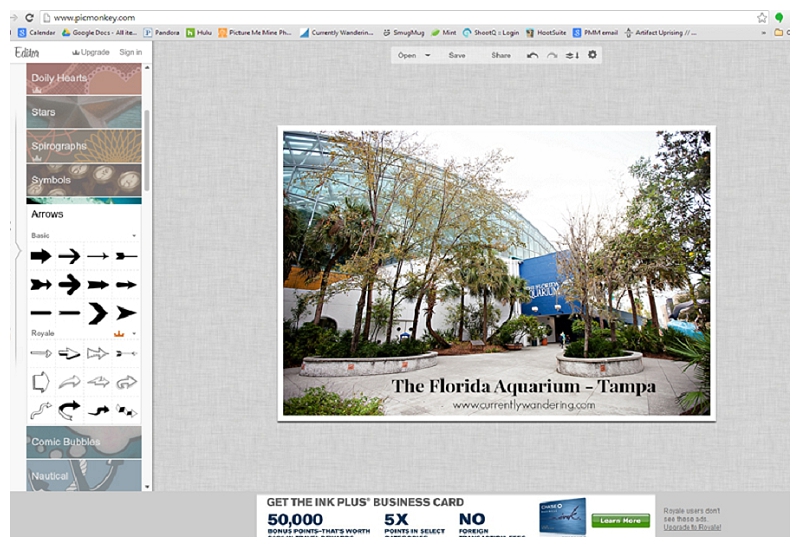
I’ve cruised Pinterest and seen the super cute title overlays that those bloggers always manage to put on their main photos. When we first started blogging, that was my biggest question. How do they do that? I pulled a few photos into Photoshop, played around with text and shape layers and immediately thought that this was WAY too much work. Ridiculous. No one has time for that. While I’m sure there are more automated ways to handle title overlays (actions for one) I didn’t want to go that route. I knew from my experience as a blogging photographer that there had to be the “thing” that everyone used. There had to be. A quick Google search came up with a pretty awesome tutorial for an online photo editing program called PicMonkey. Super genius! It has quite a few tools, but I use it mainly for adding text & the reduced opacity shapes you’ll see on my photos. Is it the “thing”? You tell me. Its definitely turned into my #2 (BlogStomp will always be #1) getting-photos-Pinterest-worthy-and-ready-for-the-blogging-world tool.

As to not reinvent a perfectly good tutorial (once again, no time for that) I’ll just link to hers. She put all the effort into it, so she might as well get the credit, right? Check it out HERE.

Picmonkey screenshot copy

So there you go. 2 great tools for photo editing and displaying online in blogs. You don’t have to be a professional to use these either! Dress up your photos for Facebook or create a collage of your vacation photos for your personal blog. Come back and leave a link so I can see what you do with them!

Categories
Most Popular Posts Photo Gear Photography The Basics

Editing Photos on Your Phone with Snapsneed

Editing Camera Phone Photos with Snapsneed 05

I’ve often heard that the best camera is the one you have with you. I don’t know about you, but I pretty much always have my phone with me. Whether I’m out on a walk with the kids, at a beach, or just hanging out in the Airstream its usually in my pocket or close nearby. That means I also always have a camera. We recently purchased the Nexus 5 (straight from Google, we’re Android snobs like that) and it has an 8 MP camera, a HDR feature, and does great in low light. For a point and shoot style camera, its a good one.

But, my photos can always be better and I don’t want to have to upload them and edit on the computer. Takes too long. Enter: Snapsneed. Snapseed is a fantastic photo editing app that’s easy to use, has all the features you need, and you can share straight to Instagram or Facebook.
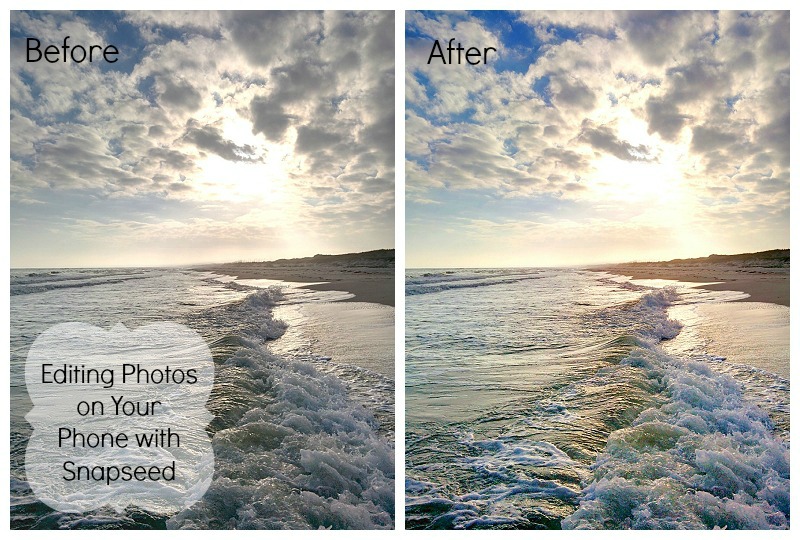
Okay, so here’s what I usually do. The first photo is the screen you get when you import a photo. I usually start with “Automatic”. It does some auto contrast, which you can adjust by sliding your finger horizontally across the screen (right is more contrast, left is less) before accepting the changes by clicking the check mark in the lower right hand corner.Editing with Snapseed ScreenshotAfter that it depends on the photo. I select “Tune Image” from the bottom menu, and then when you slide your finger up and down you’ll get the sub-menu. I typically brighten the photo a bit using “Brightness” and then I’ll pop the colors a bit with “Saturation”, sometimes I’ll add some of the nice yellow tones with “Warmth”. I find that most cameras typically underexpose their photos, so even just brightening it up a bit will help the overall image. All the adjustments work the same. Slide your finger right for more, left for less, and then click the little check mark to be done.
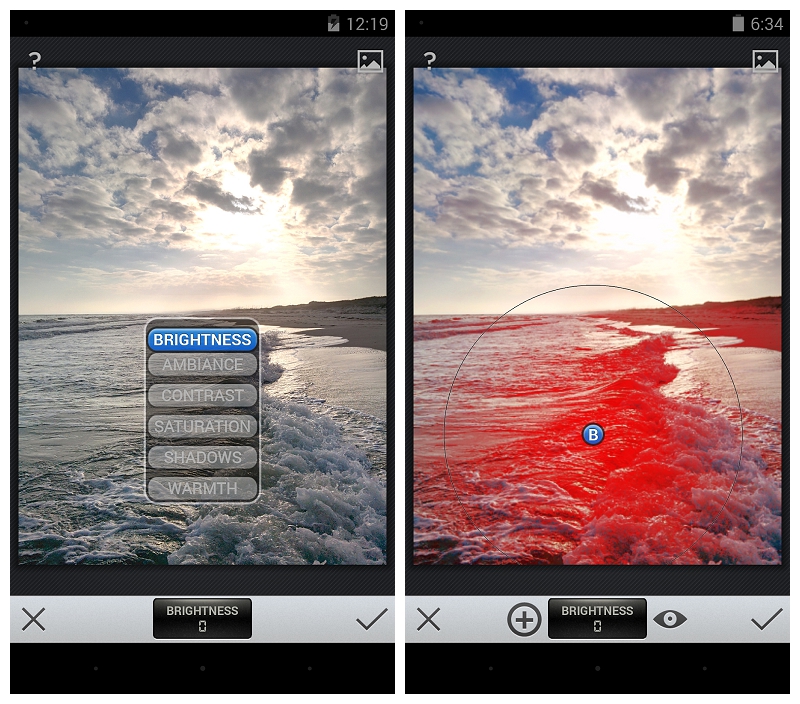
The last thing I use is the Selective Adjust. If you have just one spot on your photo that needs to be brighter/darker, or is just too saturated you can use this to edit just that piece of the photo. Click on Selective Adjust from the main menu, and then the little “plus” button. Click on the screen where you want to adjust, and it’ll put a large circle around that area. You can pinch it (two fingers) larger or smaller, you can move it around if you didn’t get it quite right the first time, and you can choose Brightness, Contrast, or Saturation by sliding your finger up and down. Once you like it, just click the check button!

Screenshot_2013-12-17-12-19-33And that’s it! Sometimes I’ll sharpen it a bit (under details) or Straighten if its really wonky. I don’t use their filters – I find I usually like the Instagram ones better anyway, and then I just have a nice clean image I can save in my gallery.

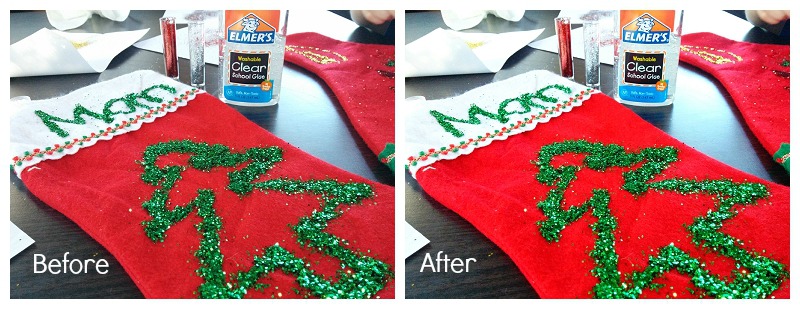
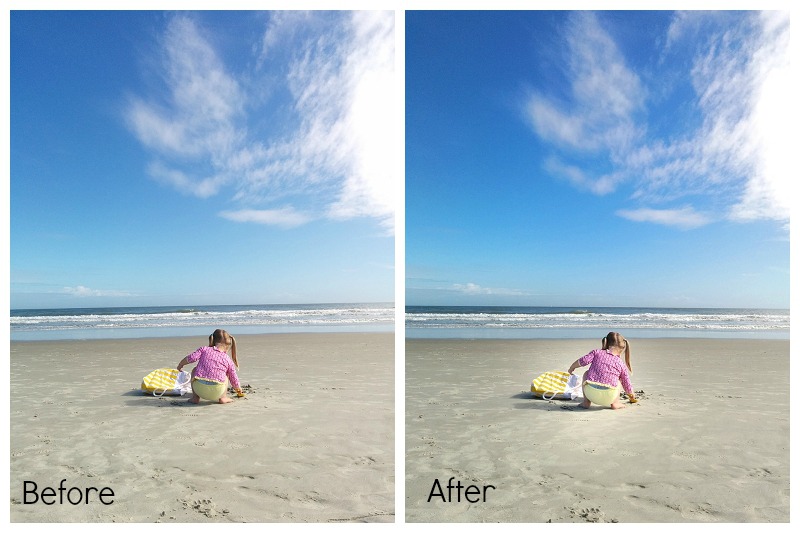
You’ll find that Snapsneed won’t fix your photos. I will always be an advocate of getting it right in camera, but it can add some nice enhancements that will make your photo just a little better. Here are two more Befores and Afters of some of the photos I’ve taken with my phone:

This one I did a selective adjust to brighten Cara up just a bit so she’s more the focus of the photo.

The changes don’t need to be extreme to improve the photo. Often just a little adjustment will make a good picture great. I often post a picture to Instagram without additional filters, because it looks so great out of Snapseed.

And, there you go! Happy editing!

Categories
Holidays & Bdays Photo Gear Photography

5 Places to Find Amazing Christmas Cards & Templates

5 Places to Find Amazing Christmas Cards & Templates

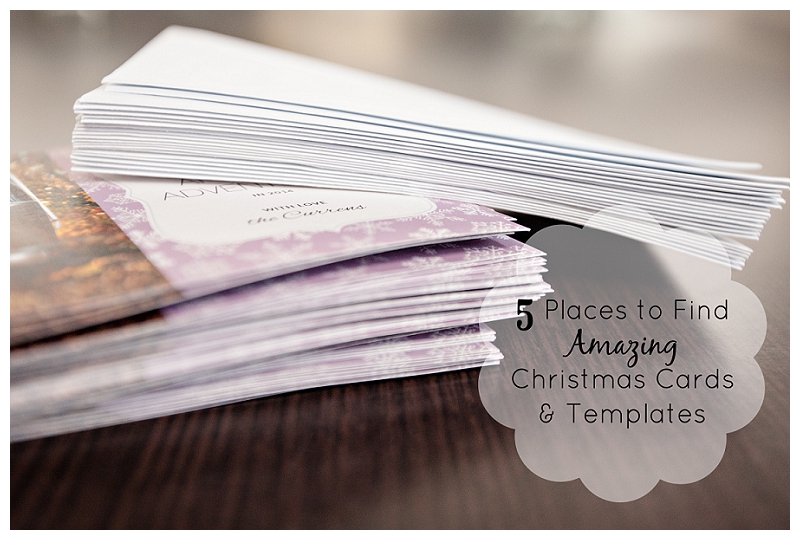
Before I became a photographer I didn’t care much for sending out Christmas cards. There were a few years we made our own, but most years we didn’t even send one out. In the photography world, however, most photographers send out cards to all their clients as a way to say “thank you”, “keep in touch” and even as a reminder to come back in the next year for updated portraits. It’s a marketing expense. Justifiably so.

I got hooked. I seriously LOVE them now. I think they are so fun. I love how the Christmas card world has evolved, and now you have boutique cards, cut out cards, tri-fold cards and all other sorts of creative shapes and sizes. It’s fabulous. So many choices!! BUT, as a regular ol’ person (no access to a fancy shmancy photo lab) where do you get the cool cards? Never fear. I am here to help.

I figure there’s 2 types of people looking for Cards – those with some Photoshop skills, and those without. If you have a copy of Photoshop or Photoshop Elements and know your way around layers and layer masks, it opens up a whole new world of Christmas card making. If not, no worries. I’ve got you covered too.

Here are 5 places I recommend shopping for Christmas cards, or Christmas card templates:

1. Etsy. No joke. Its a mecca of Christmas card templates in all shapes and sizes. I just did a search for Christmas card templates and came back with 6, 504 items. Most templates are between $4-$12 if you are buying just one. There are also vendors for maybe $15 that you can send photos to, they’ll insert into one of their templates and send you back the file. Not a bad deal. Here’s two of my favorite vendors: one, two.

2. Pro Digital Photos: No templates, just cards. Super cute ones though. They are a nifty little boutique photo lab located in Pleasant Grove Utah. I use them for a lot of my press-printed marketing material and also my Christmas cards last year. They have a lot of the fun die-cut cards and boast over 350 different options.

3. Bird Design Shop: Templates. I love hers. I couldn’t find one that fit our photos for this year, but I desperately tried. I love that she sells collections (if you are a photographer wanting to offer different designs for your clients to choose from), but also sells them singly as well. She also has some really cute Facebook Timeline templates as well.

4. Tiny Prints: They have a gazillion designs, but their search options make their selection less intimidating. You can pre-ship your envelopes (get a jump on labeling them) or even have Tiny Prints mail them out for you! Phew. A lot less work that way.

5. Costco: The professional photographer in me had to swallow a bitter pill to put this on the list, but they have really stepped up their game. In addition to their usual, weird-sized, photo cards (which I do NOT love), they are now offering 5×7 premium double-sided Premium Stationary Greeting Cards. They actually look really nice.  I’m impressed.

Spend a few minutes looking through your options, and send a great looking Christmas Card this year. Don’t forget to send me one too! 🙂